HOW TO VIEW AND COMPLETE YOUR TO DO LIST ITEMS
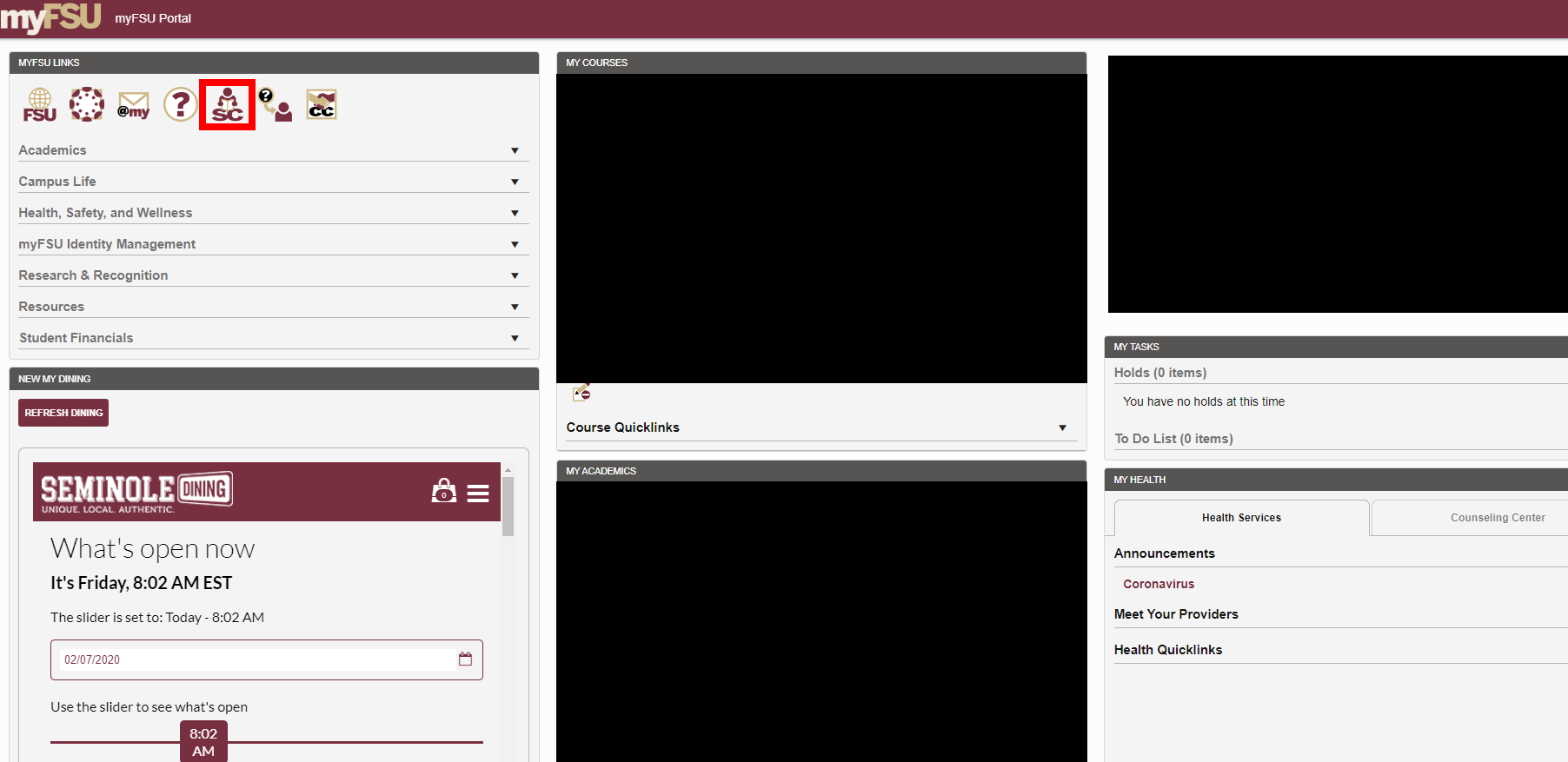
- Log into myFSU and go to Student Central
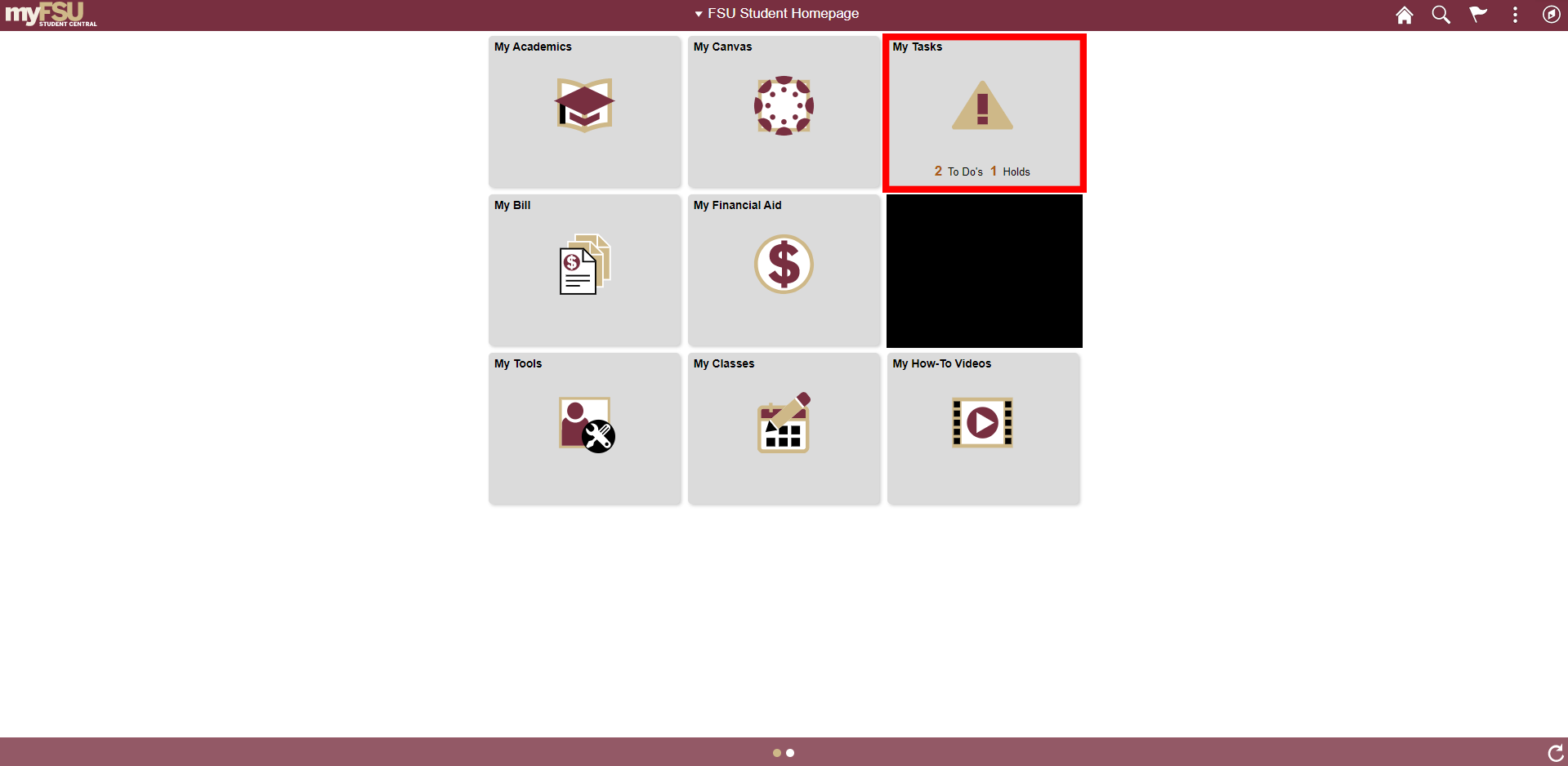
- Click on the "My Tasks" box
- You are now on the To Do List page. All of the tasks you need to complete before your financial aid can be disbursed are shown here. You can click on each item to view more information

- After you click on an item, a popup window will display additional information on the actions you need to take to complete the item and remove it from your To Do list
![An image depicting expanding information for Task Details. Within the expanded information, it shows: Dep Verification Worksheet, Aid Year, Status, Status Date, and Due Date. Underneath there is text that reads: Please submit a signed copy of your Departments Verification Worksheet. To print the required document Click Here [with Click here being a link]. Please complete and submit the document to the Office of Financial Aid.](/sites/g/files/upcbnu646/files/images/view-to-do/To-Do-4.png "An image depicting expanding information for Task Details. Within the expanded information, it shows: Dep Verification Worksheet, Aid Year, Status, Status Date, and Due Date. Underneath there is text that reads: Please submit a signed copy of your Departments Verification Worksheet. To print the required document Click Here [with Click here being a link]. Please complete and submit the document to the Office of Financial Aid.")
- If you are required to fill out and submit a document to the Office of Financial Aid, you can find the document on our Forms page. Please follow the instructions listed at the top of the Forms page to successfully submit your document
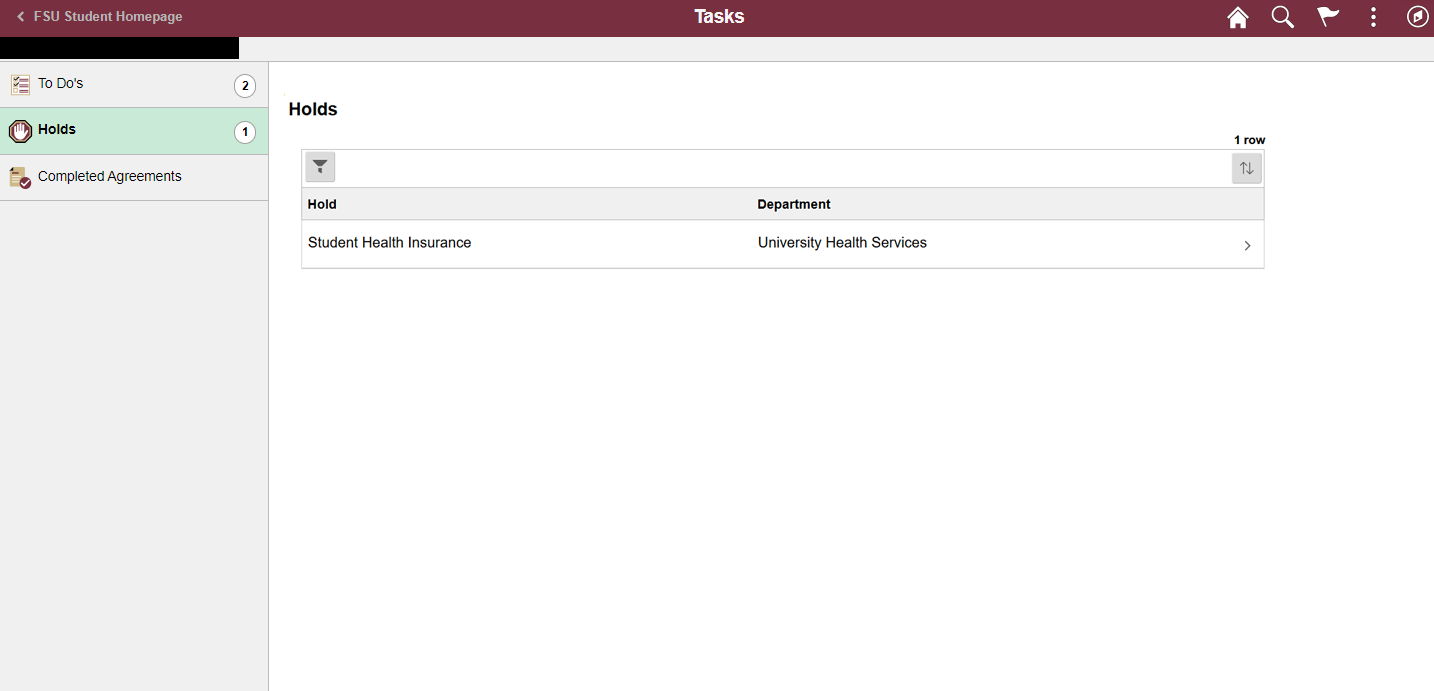
- You may have other holds on your account. To remove them, click on the Holds option on the left side menu. You will be taken to the Holds page and can view your Holds similar to how you view your To Do list items. Complete the required steps for each hold to remove them from your account